
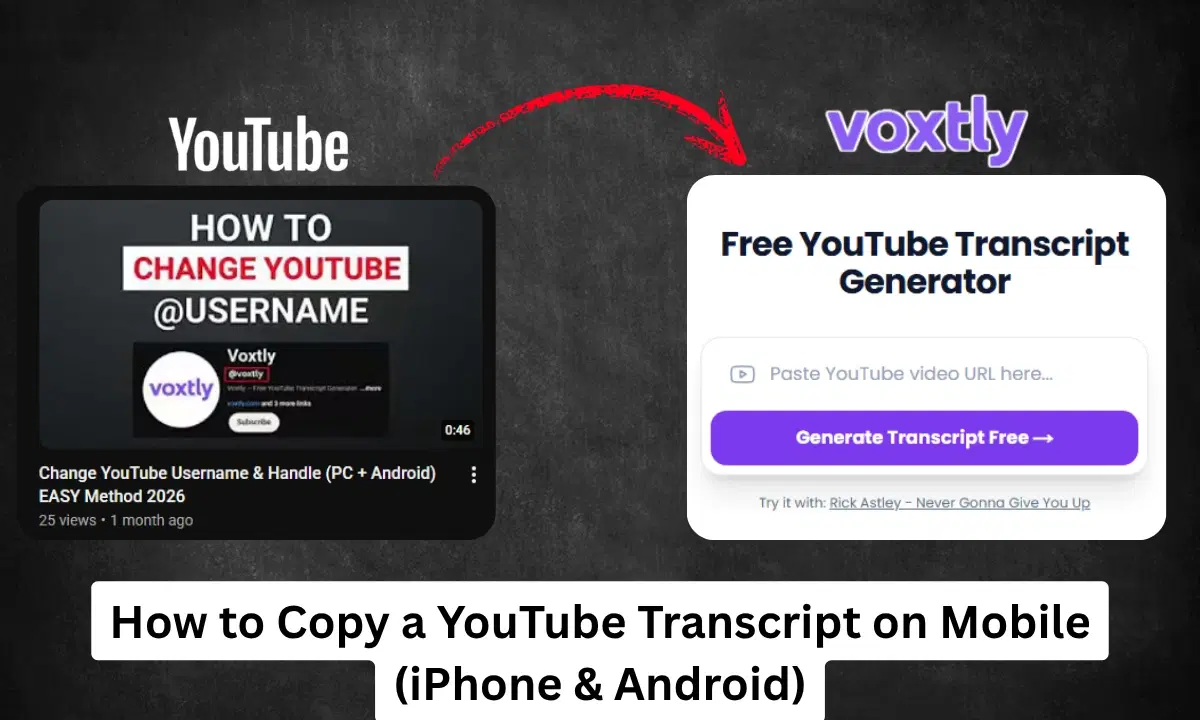
The short answer: YouTube's mobile app doesn't have a copy button for transcripts - you can only read them. To actually copy a transcript on your phone, open Voxtly in your mobile browser, paste the video URL, and tap Copy. Done in 10 seconds.
If you've ever tried to copy a transcript on your phone using the YouTube app, you've hit the same wall everyone does: the transcript panel opens, the text is right there, but there's no way to select or copy it.
YouTube's mobile app simply doesn't support it. It's one of the most frustrating missing features in the app.
Here's every method that actually works on mobile - tested on both iPhone and Android.
Method 1: Voxtly in Your Mobile Browser (Fastest)
This works on any phone - iPhone, Android, doesn't matter. No app to install.
Step 1: Open your YouTube app and find the video you want
Step 2: Tap Share → Copy link to copy the video URL
Step 3: Open your phone's browser (Safari on iPhone, Chrome on Android) and go to voxtly.com/tools/youtube-transcript-generator
Step 4: Tap the URL bar, paste the YouTube link, tap Get Transcript
Step 5: The full transcript loads. Tap Copy - the whole transcript is now on your clipboard
Step 6: Paste it anywhere - Notes, ChatGPT, WhatsApp, Google Docs, wherever you need it
The whole process takes about 15 seconds. Voxtly is free and you don't need an account.
Bonus: Voxtly also lets you toggle off timestamps before copying, so you get clean text without the
[0:32]clutter.
Method 2: YouTube's Built-In Transcript on Mobile (Read Only)
YouTube does have a transcript feature on mobile, but it has a critical limitation: you can read it, you can't copy it.
That said, here's how to open it - useful if you just want to skim the content or find a specific moment:
On iPhone:
- Open the YouTube app and play the video
- Tap the video title or the down arrow (⌄) to expand the description
- Scroll down until you see "Show transcript"
- Tap it - the transcript panel slides up with timestamps
- Tap any line to jump to that moment in the video
On Android:
- Open the YouTube app and play the video
- Tap the video title to expand details
- Scroll down and tap "Show transcript"
- Same as above - you can read and tap lines, but not copy
As of 2026, there is no copy button in YouTube's mobile transcript panel. This is a YouTube design decision, not a bug.
Method 3: Request Desktop Site (Workaround on Some Phones)
On some phones, you can force the full desktop version of YouTube in your browser, which does allow text selection.
On iPhone (Safari):
- Go to youtube.com in Safari
- Tap the AA button in the address bar
- Tap "Request Desktop Website"
- Find your video, open the transcript panel via the three dots below the video
- Try to select and copy the text manually
On Android (Chrome):
- Go to youtube.com in Chrome
- Tap the three dots (⋮) in the top right
- Tap "Desktop site"
- Same process as above
This is hit-or-miss. On many phones the text still isn't easily selectable, and the desktop layout is cramped on a small screen. Voxtly is easier and faster.
Method 4: Share to Notes, Then Search (iPhone Shortcut)
If you just need to find a specific quote or moment from a video transcript on iPhone, there's a quick workaround using the YouTube Share sheet:
- Open the video in the YouTube app
- Tap Share
- Tap Notes (or any text app - Google Docs, Notion, etc.)
- This shares the video link, not the transcript - but you can then open the link in Notes' built-in browser and use Voxtly from there
This is more steps than Method 1. Just use Voxtly directly.
Comparison: Which Method to Use
| Situation | Best method |
|---|---|
| Need to copy the full transcript | Voxtly in mobile browser |
| Just want to skim / find a timestamp | YouTube built-in transcript |
| Want to paste into ChatGPT on phone | Voxtly → copy → paste |
| Need transcript translated | Voxtly (125+ languages) |
| Video has no captions | Voxtly won't work; use YouTube Studio to generate captions first |
What to Do Once You've Copied the Transcript on Mobile
The most common reason people want a transcript on mobile is to paste it into an AI app. Here's a quick workflow:
Summarize a long video on the go:
- Copy transcript with Voxtly
- Open the ChatGPT app
- Paste + type "summarize this in 5 bullet points"
- Done - you just turned a 1-hour video into a 30-second read
Save it to your notes:
- Copy transcript with Voxtly
- Open Apple Notes, Notion, or Obsidian
- Paste and label it with the video title and date
Send the key points to a friend:
- Copy transcript with Voxtly
- Paste into ChatGPT: "pull out the 3 most important ideas from this transcript"
- Copy the result and share via WhatsApp or iMessage
Frequently Asked Questions
Why can't I copy the transcript in the YouTube app? YouTube's mobile app intentionally restricts text selection in the transcript panel. It's a design decision - YouTube hasn't added a copy button despite users requesting it for years. Third-party tools like Voxtly work around this by accessing the transcript data directly.
Does Voxtly work on iPhone and Android? Yes. Voxtly is a web-based tool, so it works in any mobile browser on any device - iPhone, Android, or tablet. No app download required.
What about YouTube Shorts? Can I get transcripts from Shorts on mobile? Yes. Paste the YouTube Shorts URL into Voxtly the same way. Voxtly handles Shorts, regular videos, and recorded live streams.
Does this work for videos in other languages? Yes. Voxtly extracts the transcript in the video's original language, and can also translate it into 125+ languages before you copy. So you can get an English transcript of a video originally in any language.
Can I get a transcript from a private or unlisted video? Voxtly only works with public and unlisted videos that have captions available. Private videos (set to private on YouTube) cannot be accessed.
Get Your Transcript Now
Stop wrestling with YouTube's app. Open Voxtly in your phone's browser and copy any YouTube transcript in 10 seconds.
👉 Open Voxtly on Mobile - Free, No Signup →
Related guides: