

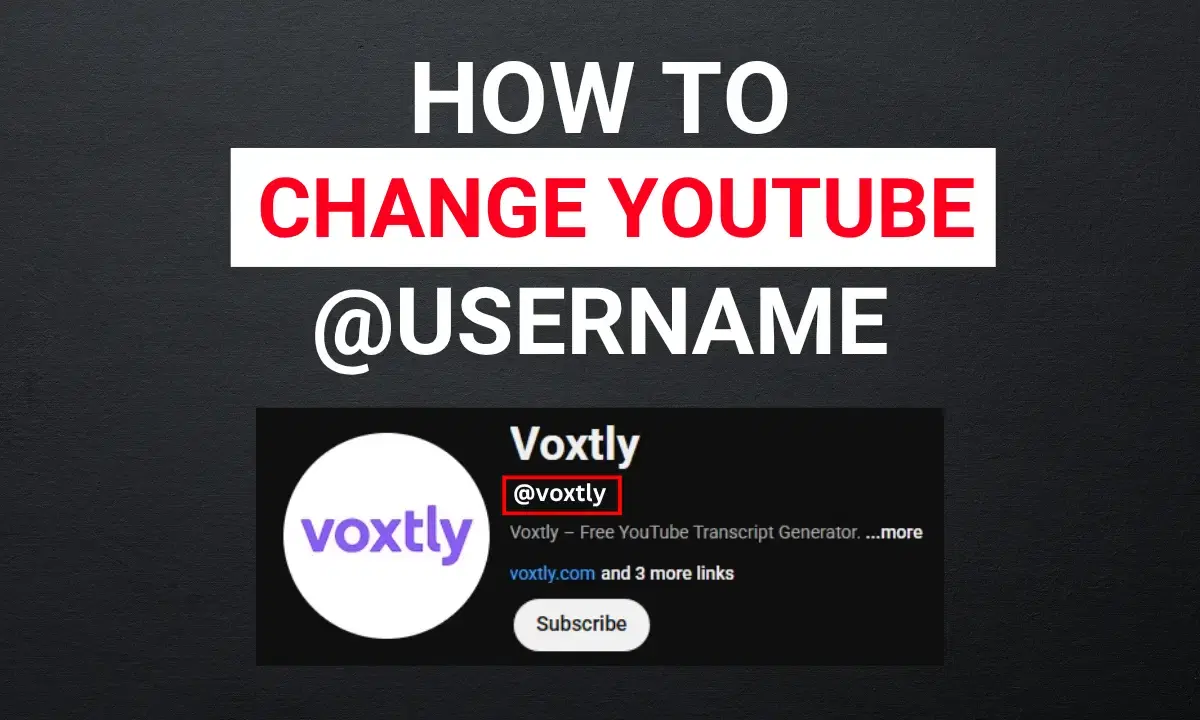
Changing your YouTube username sounds simple, but most people hit a wall because YouTube actually has two separate things that both act like a "username": your channel name and your handle (@username). They live in different places, have different rules, and changing one does not automatically change the other.
This guide covers both — with exact steps and visual proof for every device — plus answers to the specific errors creators run into.
First: Understand the Difference (This Is Why People Get Confused)
Before touching any settings, understand what you are actually changing:
| Feature | Channel Name | Handle (@username) |
| What it is | Display name shown on your channel page and under videos | Unique identifier starting with @ (e.g. @YourChannel) |
| Must be unique? | No — multiple channels can have the same channel name | Yes — no two channels share the same handle |
| Controls your URL? | No | Yes — your URL is youtube.com/yourhandle |
| Change limit | Unlimited | 2 times per 14-day period |
| Affects Google? | No (since 2022) | No |
| Where to change | YouTube Studio → Customization → Basic Info | YouTube Studio → Customization → Basic Info |
Most people searching "how to change YouTube username" actually want to change their handle — the @username that appears in comments, search, and their channel URL. That is what this guide focuses on, with channel name steps included too.
How to Change YouTube Username on PC / Laptop (Desktop)
This is the recommended method. The desktop interface is the clearest and least likely to cause errors.
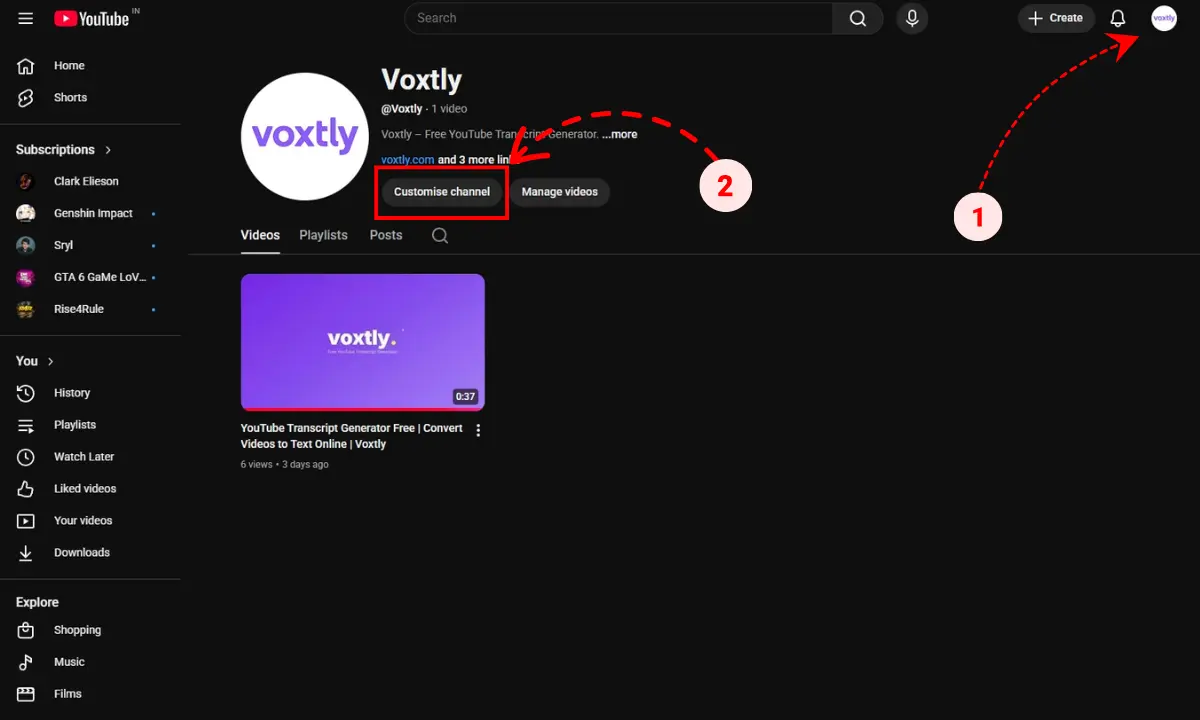
Steps:
- Go to youtube.com and sign in to your account
- Method 1 (Direct – shown above):
Open your channel page (e.g. youtube.com/yourhandle) and click Customize Channel - Method 2 (Alternative):
Click your profile picture in the top-right corner → select YouTube Studio - In the left sidebar, click Customization
- Click the Profile tab at the top
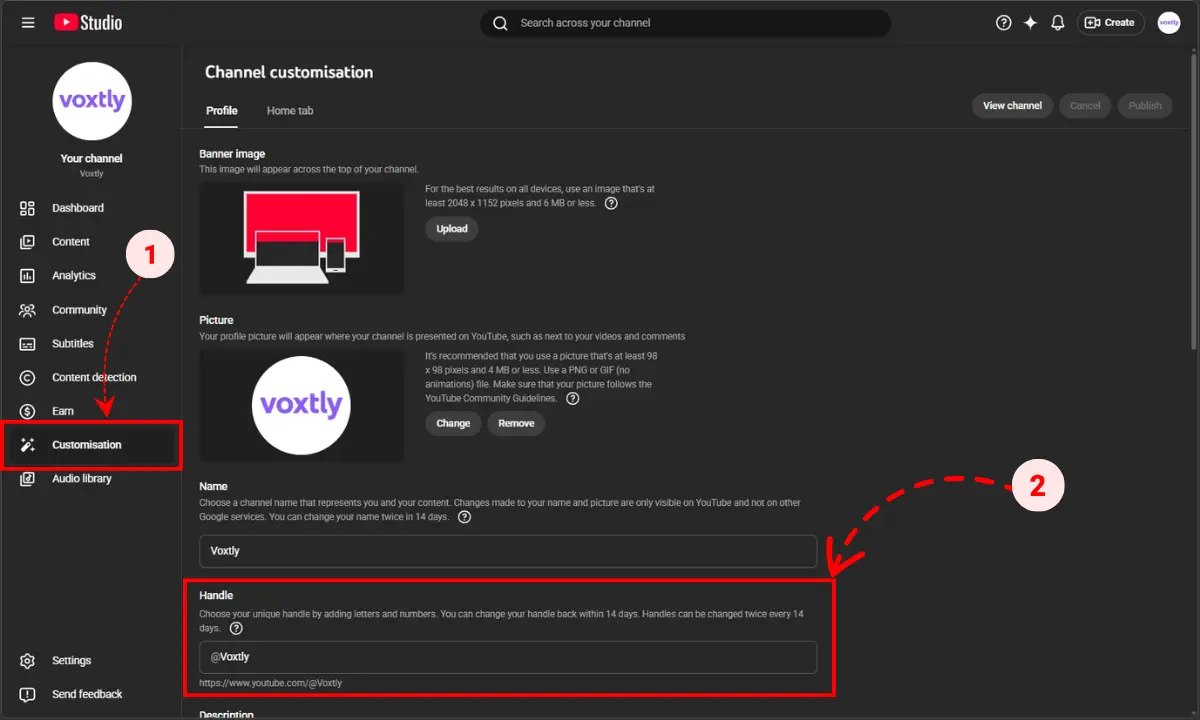
- To change your handle: find the Handle field, type your new @username, and wait for the green checkmark
- To change your channel name: find the Name field and enter your new display name
- Click Publish (top right) to save changes
Your new handle goes live immediately. The change will appear in new comments, your channel URL, and search within a short time.
Change YouTube Handle Using Direct Link (Fastest Method)
You can quickly change your YouTube handle using a direct link. This method works on both desktop and mobile, and on Android it can open directly in the YouTube app.
Shortcut: You can also go directly to youtube.com/handle in your browser while signed in to jump straight to the handle editor.
Steps:
- Open this link in your browser: youtube.com/handle
- Make sure you are logged into your YouTube account
- Click Change handle
- Enter your new @username
- Check availability (green tick will appear)
- Click Confirm selection
On Android:
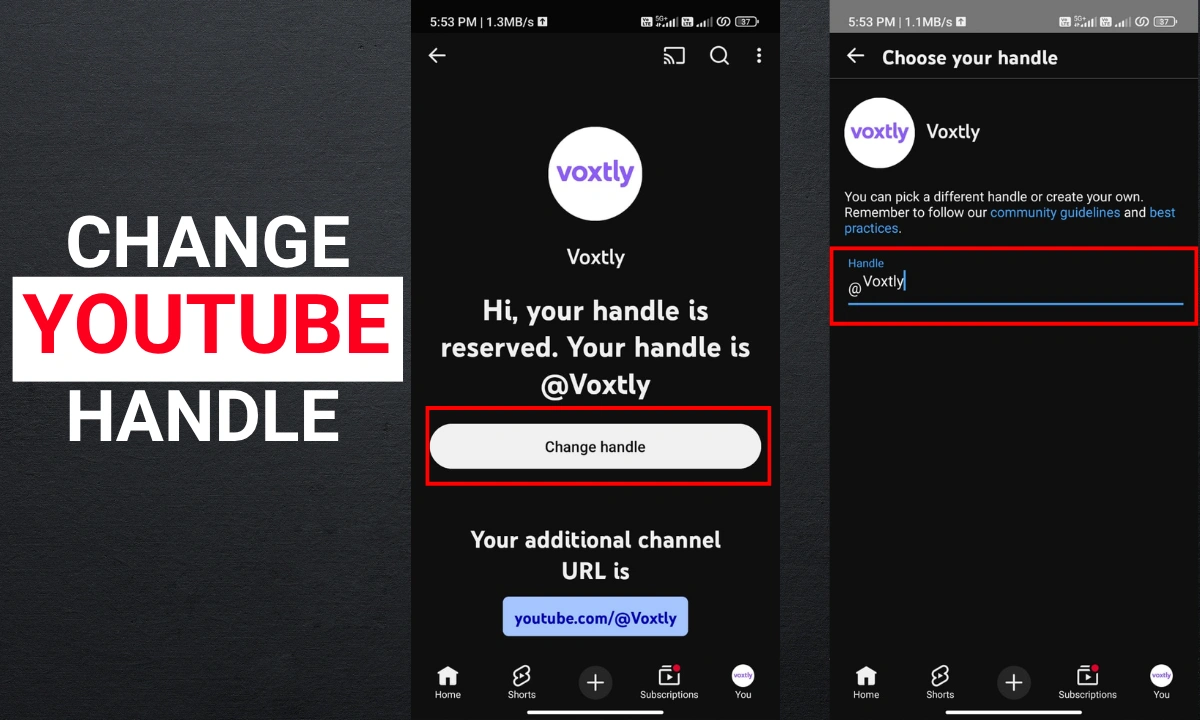
- Opening youtube.com/handle may automatically launch the YouTube app
- You’ll be taken directly to the handle editing screen
- This makes it the fastest way to change your username
Once updated, your channel URL will automatically change to:
youtube.com/@yourhandle
How to Change YouTube Username on Phone (Android)

Steps:
- Open the YouTube app on your Android device
- Tap your profile picture in the top-right corner
- Tap Your Channel
- Tap the edit (pencil) icon below your channel banner (next to the analytics icon)
- To change your handle: tap the pencil icon next to the Handle field and enter your new @username
- To change your channel name: tap the pencil icon next to the Name field and enter your new display name
- Tap Save after each change
How to Change YouTube Username on iPhone
The steps on iPhone are nearly identical to Android through the YouTube iOS app:
-
Open the YouTube app on your iPhone
-
Tap your profile picture (bottom right of the screen)
-
Tap Your Channel
-
Tap the edit/pencil icon on your channel page
-
Tap the pencil next to Handle to change your @username
-
Tap the pencil next to Name to change your channel display name
-
Tap Save
If the edit icon is not visible, make sure you are signed into the correct Google account — and that you are viewing your own channel, not someone else's.
How to Change YouTube Username on TV
YouTube on smart TVs and streaming devices does not support editing your channel profile directly. There is no direct "change username" option inside the YouTube TV app.
To change your username from a TV setup:
-
Open a browser on your phone or computer
-
Go to YouTube Studio → Customization → Basic Info
-
Make your changes and publish
-
The updated name will appear on your TV automatically within a few minutes
How to Change YouTube Display Name in Comments (And The Caching Delay)
Your display name in comments is controlled by your handle — not your channel name. When you leave a comment, YouTube shows your handle (@username) next to your profile picture.
To change how your name appears in comments, simply change your handle following the device steps above. The new handle appears immediately in any new comments you post.
Important Note on Old Comments:
YouTube's system does update your old comments to reflect your new handle, but the comment system is heavily cached. It can sometimes take weeks for the old handle to visually swap over on legacy comments. This causes panic for many creators who think the change is broken. Don't worry—it will eventually update system-wide.
Can I Change My YouTube Username Without Changing My Google Name?
Yes — and this is now fully supported as of 2022.
YouTube allows creators to change both their channel name and handle completely independently of their Google account name. Your Gmail name and your YouTube channel name are no longer forced to match.
When you edit your channel name in YouTube Studio, you are editing the YouTube channel name only. Your Google account first and last name (used for Gmail, Google Drive, etc.) remains entirely unchanged.
Troubleshooting: Why Won't YouTube Let Me Change My Username?
If you are hitting an error, here is how to bypass the most common technical hurdles.
YouTube Save Button Greyed Out When Changing Name
If the "Publish" or "Save" button is greyed out, you have likely hit a hard limit or lack administrative permissions.
-
The 14-Day Limit: YouTube strictly limits handle changes to 2 per 14-day period. If you have reached this, you must wait out the remaining time.
-
Brand Account Permissions: If your channel is a Brand Account (often used by businesses or teams), only the Owner can change the channel name. Managers cannot. Check your role at myaccount.google.com → Brand Accounts.
Why Does YouTube Say Handle Contains Invalid Characters?
YouTube is incredibly strict about handle formatting. If you get an invalid character error, ensure your handle meets these exact rules:
-
Must be 3–30 characters long.
-
Can only contain letters (a–z, A–Z), numbers (0–9), underscores (_), hyphens (-), and periods (.).
-
No spaces are allowed.
-
Periods cannot be at the very beginning or the very end of the handle.
-
Consecutive periods (like @Name..Channel) are forbidden.
The Handle You Want Is Already Taken
Handles must be 100% unique across all of YouTube. If @YourPreferredName is taken, the save button will not work, and YouTube will suggest alternatives. You will need to add numbers, underscores, or abbreviations to find an available variation.
What Happens to Your Old Handle After You Change It?
This is a critical detail most guides miss: your old handle becomes available for anyone to claim immediately after you change it.
The @handle system does not reserve your old handle for you. The moment you switch from @OldName to @NewName, someone else can claim @OldName within seconds.
Additionally, any mentions and tags of your old handle in other people's videos or community posts will not automatically update to your new name. If a stranger claims your old handle, those old mentions will point to their channel instead of yours. Do not release a well-known handle unless you are certain you are done with it.
Frequently Asked Questions
How do I edit my YouTube username?
How do I change my user account in YouTube?
How long does it take for the YouTube username change to show everywhere?
Will I lose subscribers if I change my YouTube username?
What is the difference between a YouTube handle and a YouTube channel name?
Last updated: 2026 | Verified against YouTube Studio and official YouTube Help documentation.